A useful 3D scene needs more than a good overview. People need ways to arrange context, reveal hidden detail, compare information and explain what they have found.
SiEGA Desktop 2.2.0, released March 6, 2026, introduced asset placement, cross sections, Stories and tile comparison. The release notes also label VR as experimental and asset-library save/load as unfinished at that release.
Arrange a scene around a question
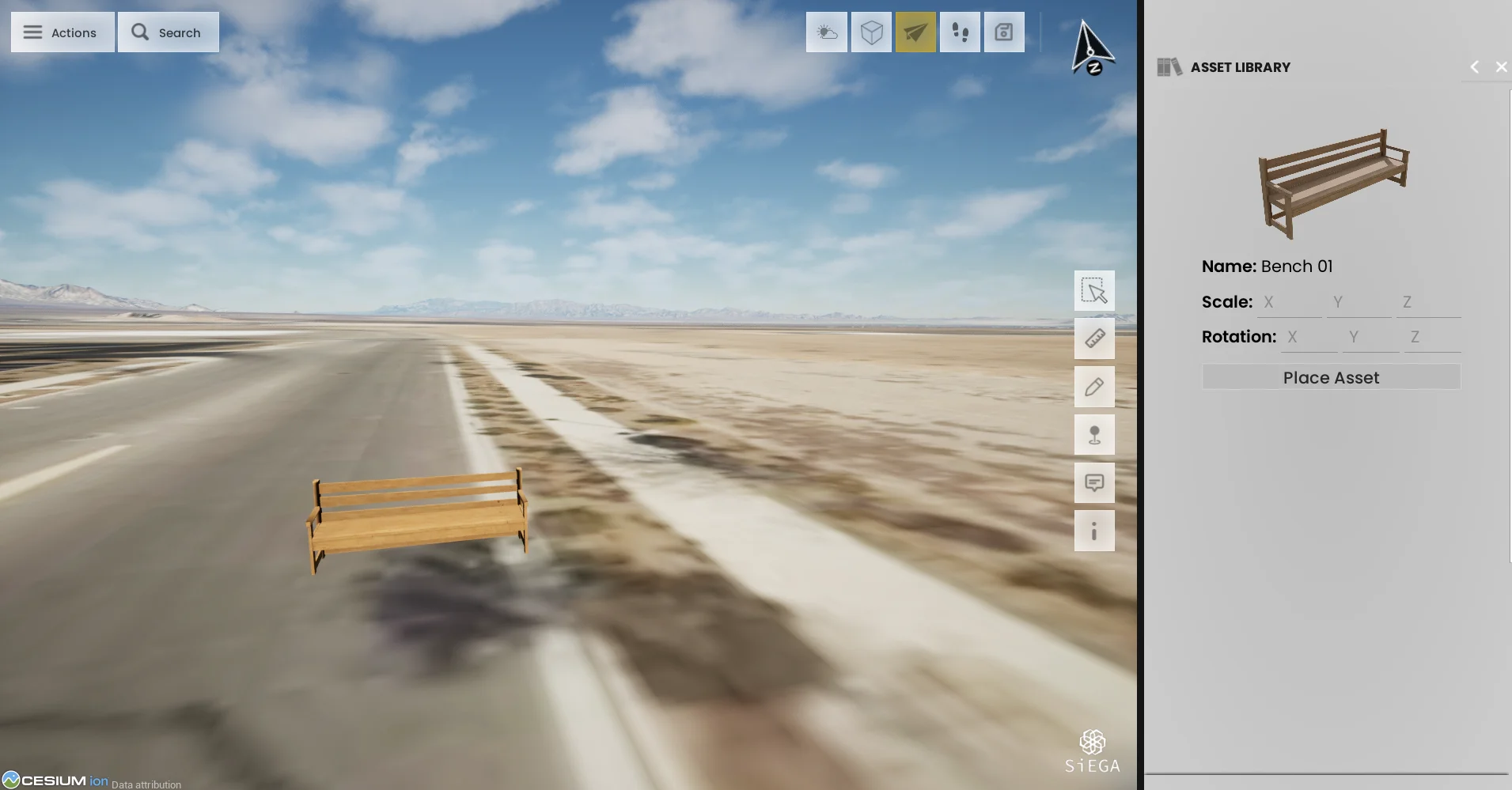
Placing an object in context makes it possible to discuss relationships: scale, position and surroundings. A useful demonstration should make the purpose of the object clear. Is it an existing feature, a proposed addition or simply a reference for the conversation?
Look beyond the outside surface
Cross sections offer a different way to inspect a scene. In a walkthrough, show the full context before clipping it, and then explain what the cut reveals. This helps a reader understand the operation instead of seeing a model apparently disappear.
Compare, then communicate
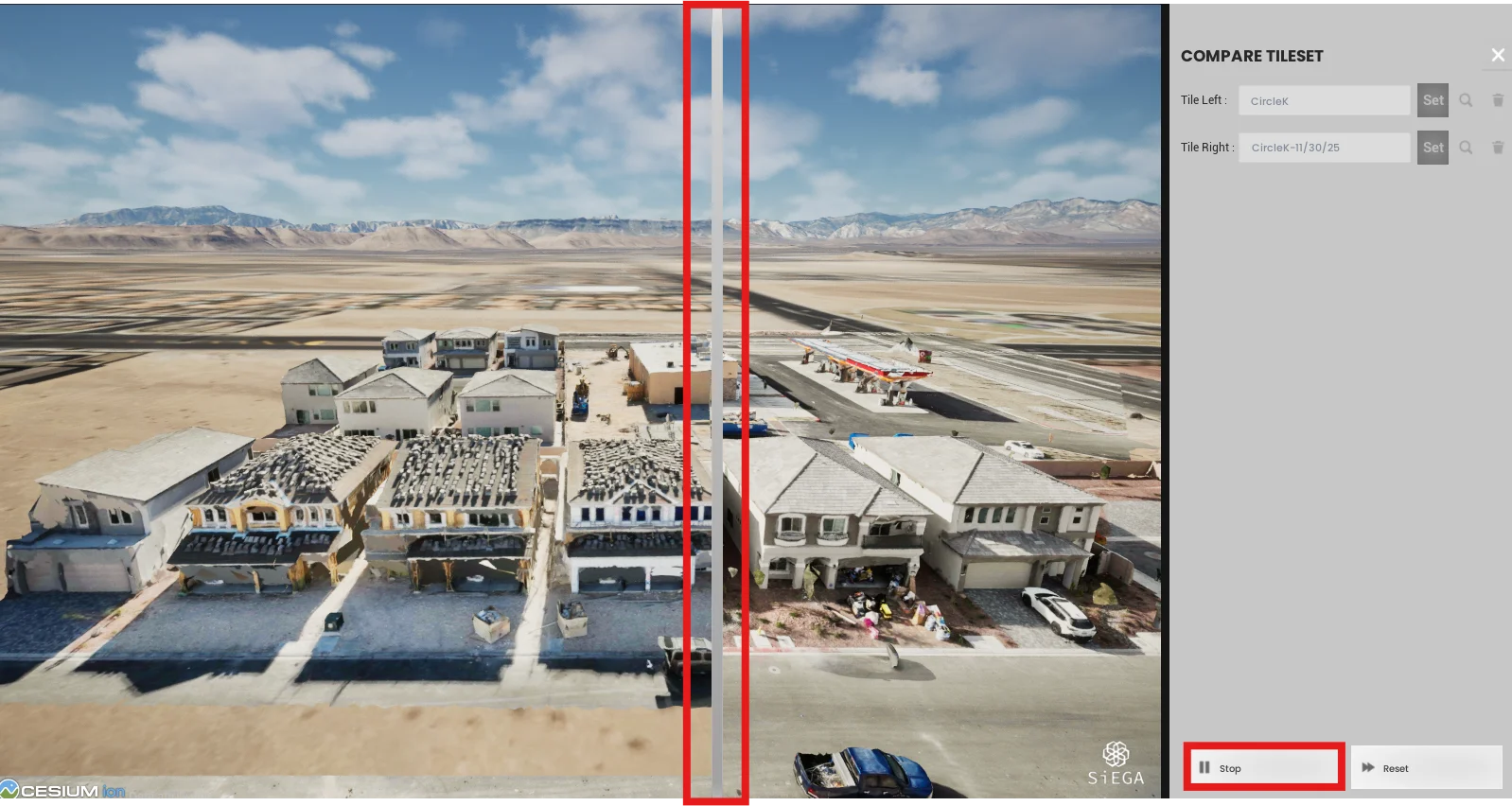
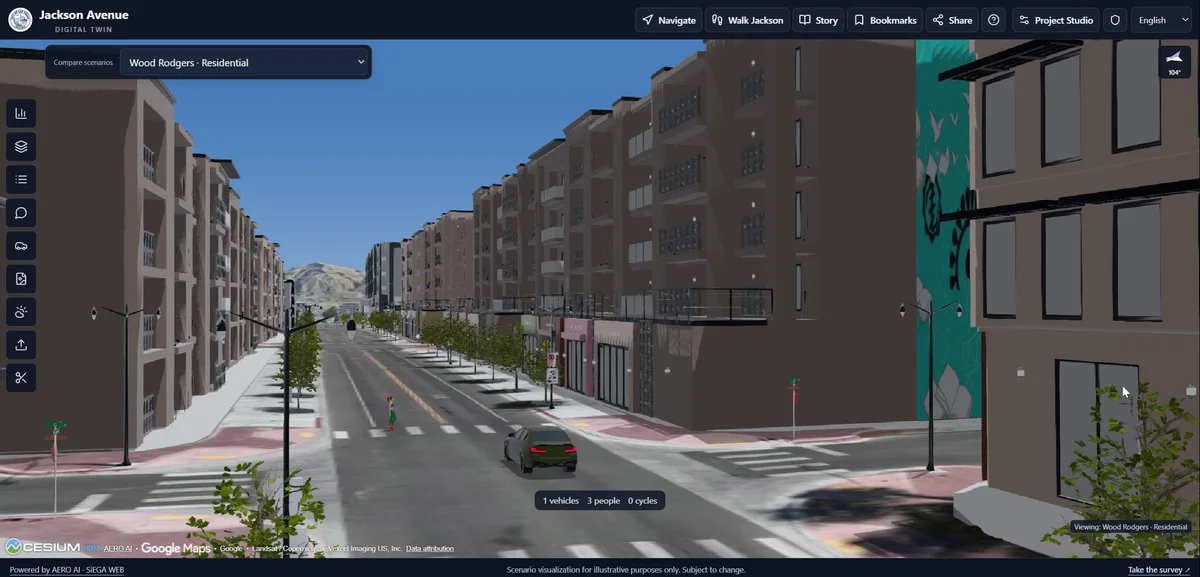
A comparison view helps focus attention on differences. It works best when the data sources and their dates are visible, especially when one side represents a proposal rather than a capture.
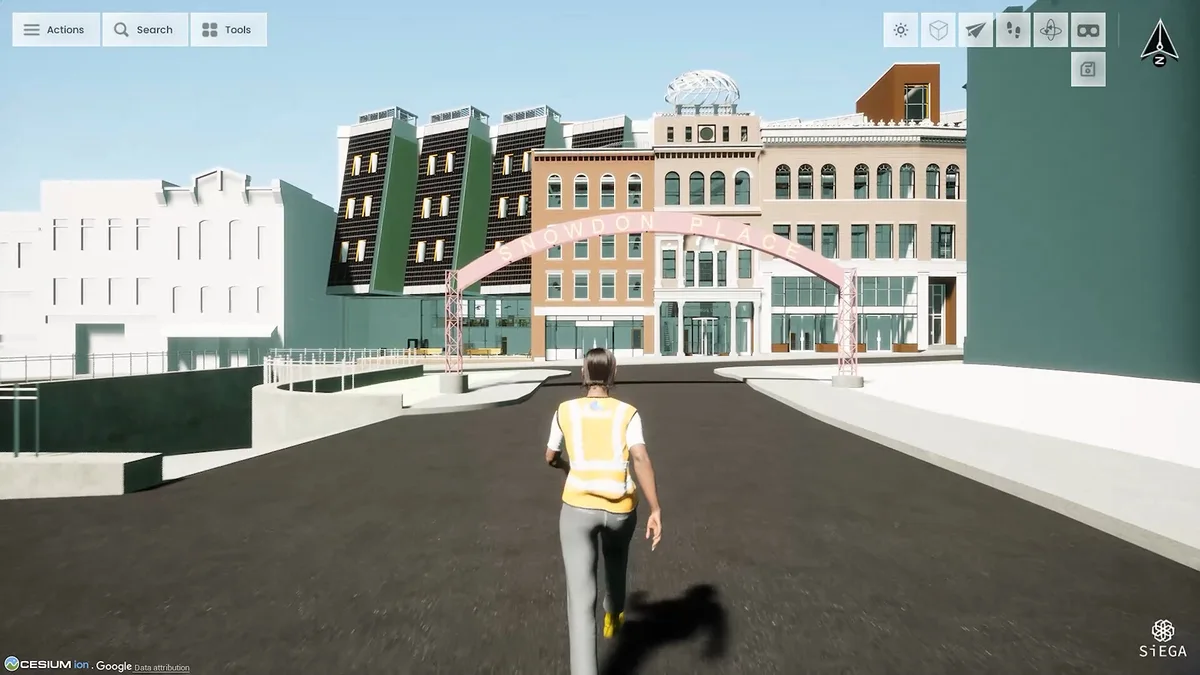
Stories serve another purpose: guiding someone through a sequence of meaningful views. Rather than asking an unfamiliar viewer to navigate the whole scene, choose a short route that explains the project and ends at the question being discussed.
A practical sequence for a design review
Start with the full scene and explain the question. If an object has been placed as a design aid, identify it as proposed rather than existing. Use an overview to establish its location, then move to a closer view that makes the relationship to nearby features easier to understand.
The Asset Library guide provides the operating reference. For the 2.2 release discussed here, save/load support for placed library assets was still described as work in progress. That matters when preparing a presentation: test the session you intend to show rather than assuming every arrangement will persist between sessions.
Next, reveal only the information needed for the review. A cross section can help explain a relationship hidden behind an outside surface. It does not create missing interior information; the underlying model still determines what can be seen. Explain the plane’s position and return to an unclipped view so the audience can relate the detail to the whole.
Make comparisons interpretable
Before comparing tiles, confirm what the sources represent and how they are positioned. A capture and a design model can be useful together, but their differences should not automatically be read as defects. Different dates, model detail and reference systems can all affect what a viewer sees.
A strong presentation gives the audience an explicit question: which relationship are we examining, and what would need further investigation? That keeps the comparison tied to the project rather than becoming a visual trick.
Build a short route through the scene
The Stories guide describes a sequence of locations in the world. Think of that sequence as an explanation: establish the setting, reveal a detail and end at the decision or discussion point.
Three well-chosen views can communicate more than an uninterrupted flythrough. Leave enough time at each stop for the viewer to understand the scene, and explain changes in scale or orientation. This is particularly useful for people who do not navigate 3D environments every day.
These habits turn the release’s tools into a coherent review workflow. The feature enables an operation; the presenter gives that operation a purpose. The goal is to help someone understand a project more clearly, not to demonstrate every control in one sitting.
Choose tools that suit the review
A focused comparison may be enough for one review; another may benefit from a guided exploration. An experimental feature should be evaluated with that status in mind.
Explore SiEGA Desktop for the current experience. Use the public release history for version-specific limitations rather than treating this retrospective as a current feature checklist.